Quick Start

Develop and test your game's API calls in Unity without waiting for backend services.


πŸŽ₯ Watch First​

Prefer video? Watch this quick tutorial:

Or follow the written guide below ↓


The Problem You're Solving ​

You're building a Unity game that talks to a backend server. You need login systems, player profiles, leaderboards, shop/inventory, multiplayer matchmakingβ€”but development is painful.

See yourself in these situations?

ScenarioWithout API Mocking ToolkitWith API Mocking Toolkit
Backend team is behind
  • Blocked, UI untestable
  • Fake data everywhere
  • Big refactor later
  • You define the API contract
  • Build & test the client now
  • Switch to real backend when it's ready
Testing edge cases
  • Depend on backend team to simulate errors
  • Unstable network
  • Bugs hard to reproduce
  • Configure success/error/timeout/invalid responses yourself
  • Replay scenarios instantly as often as needed
Working offline
  • Game can’t run without network/VPN
  • Progress stalls
  • Game uses only mocked APIs in Unity
  • Keep working wherever you are
Capturing real API data
  • Copy-paste JSON from Postman/browser
  • Format manually
  • Keep updating when backend changes
  • Click "Send" β†’ "Save as Mock"
  • Captured with exact headers, status, latency
  • Customize before saving
  • Work offline instantly

Sound familiar? API Mocking Toolkit solves all of this.

Run your entire game without a backend API server. Test any scenario. Capture real API responses with one click. Work completely offline.

How it works:

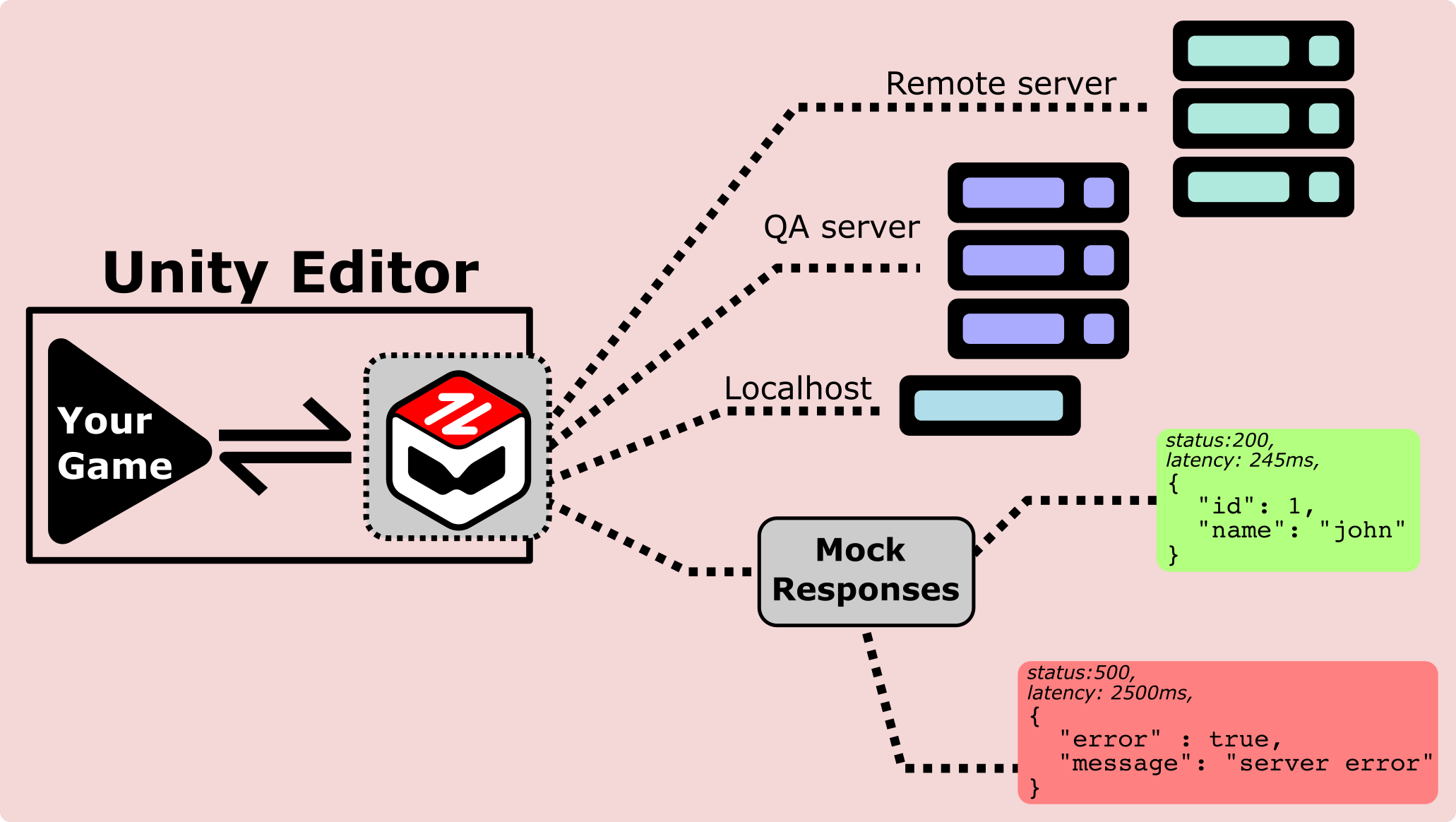
Your game talks to the API Mocking Toolkit, which can route calls to:

  • Real Backend – Production or staging servers
  • QA Server – Testing environment
  • Localhost – Local development server
  • Mock Responses – Instant success/error responses with custom status codes, latency, and data

API Mocking Toolkit Routing

↑ One tool, four ways to test – Switch between real servers and mocks instantly


What You'll Learn​

In this quick guide, you'll:

  1. βœ… Install API Mocking Toolkit
  2. βœ… Run the demo scene (see it working instantly!)
  3. βœ… Create your first mock API endpoint

Make your game work without a backend.

No live backend required during development. Your game talks to mocked APIs running entirely inside Unity.


Installation (Unity Asset Store)​

  1. Open the Unity Asset Store
  2. Search for "API Mocking Toolkit" or open the Asset Store page directly in your browser.
  3. Click Import
  4. Import all files

Requirements:

  • Unity 2021.3 or later
  • No external dependencies

Run the Demo Scene ​

Follow these steps to run the included demo scene and verify that the toolkit is installed correctly:

Step 1 – Open the demo scene

In Unity, open Assets > CodeCarnage > ApiMockingToolkit > Samples > DemoScene > DemoScene.unity, then double-click to open it.

What you'll see:

  • A simple UI with two buttons: Get Users and Get Posts
  • Request/Response panels showing API calls
Step 2 – Press Play

Hit the Play button. The scene runs.

Step 3 – Click "Get Users"

What happens:

  • Button sends API request to jsonplaceholder.typicode.com/users
  • API Mocking Toolkit intercepts it
  • Returns mock user data instantly
  • No internet needed!

Example request/response:

REQUEST:
GET /users

RESPONSE:
Status: 200
{
"id": 1,
"name": "Leanne Graham",
"username": "Bret",
...
}
Step 4 – Click "Get Posts" multiple times

Watch this:

  • First click β†’ Returns page 1 of posts
  • Second click β†’ Returns page 2 of posts
  • Third click β†’ Returns page 3 of posts
  • Fourth click β†’ Loops back to page 1

This is Response Strategies – API Mocking Toolkit cycles through different responses automatically, which is useful for testing pagination and repeated calls.

What just happened?

You just ran a fully functional game that makes API calls through ApiClient, receives responses, and handles data without depending on a live backend.

  • βœ… No backend team required during this stage of development
  • βœ… No network connection required while using only mocked APIs
  • βœ… Fast, predictable responses
  • βœ… Complete control over the data you test with

How It Works ​

You might be wondering: "How does this work?"

Let's peek under the hood. Open DemoController.cs:

public async void OnGetUsersClicked()
{
// This is normal Unity HTTP code - nothing special!
var response = await ApiClient.GetAsync(
"https://jsonplaceholder.typicode.com/users"
);

// Display the response in the UI
DisplayResponse(response);
}

That's it. Standard API call. No magic.

Behind the scenes:

  • You configured an endpoint (already done in the demo scene)

    • URL: https://jsonplaceholder.typicode.com/users
    • Mock response: [{user data...}]
  • API Mocking Toolkit intercepts

    • Sees the URL matches your config
    • Returns your mock data instead of hitting the real server
  • Your code gets the response

    • Doesn't know it's mocked
    • Works exactly like a real API

The key idea: your game code doesn't change.

Same code works with:

  • βœ… Mocked data (when API Mocking Toolkit is active)
  • βœ… Real backend (when you turn mocking off)

No if (testing) checks. No special test code. Just works.


Create Your First Endpoint (Your Turn!) ​

Now for the real power: Mock YOUR game's API.

Imagine you're building an RPG. You need a player profile API, but the backend isn't ready yet.

Let's build it anyway:

Step 1 – Open the API Mocking Toolkit window

In Unity, open Window > CodeCarnage > API Mocking Toolkit. A new window opensβ€”this is your control center.

Step 2 – Create an endpoint

Click "+ Endpoint". In the form, set:

Step 3 – Add a mock response

In the Response section, set Status Code to 200 and use a JSON body like:

{
"id": 123,
"username": "player1",
"level": 42,
"coins": 9999
}
Step 4 – Enable Offline Mode

Toggle Offline Mode ON at the top of the window so the game uses mocked responses instead of the real backend.

Step 5 – Test it

Create a test script:

using UnityEngine;
using CodeCarnage.ApiMockingToolkit;

public class ProfileTest : MonoBehaviour
{
async void Start()
{
var response = await ApiClient.GetAsync(
"https://api.mygame.com/user/profile"
);

Debug.Log($"Status: {response.StatusCode}");
Debug.Log($"Body: {response.Body}");
}
}

Run it! You'll see your mock data in the console.


What's Next?​

πŸŽ‰ Congratulations! You've:

  • Installed API Mocking Toolkit
  • Run the demo scene
  • Created your first endpoint

Continue learning:

  • Core Features (Deep Dive) – Response strategies, offline mode, environments, sessions, OpenAPI, error simulation, and more
  • Guides – Workflows and real-world scenarios
  • API Reference – Full API surface and code examples

Watch the video again later:

  • Use it as a visual cheatsheet when you come back to the tool

Troubleshooting​

Nothing happening?

  • Make sure Offline Mode is ON
  • Check the URL matches exactly (case-sensitive)
  • Look for errors in the Console

Demo scene not working?

  • Make sure "Demo Scene Collection" is selected in dropdown
  • Re-import the Samples folder from Package Manager

Need help?