Aller au contenu principal

Démarrage rapide

Develop and test your game's API calls in Unity without waiting for backend services.


🎥 Watch First

Prefer video? Watch this quick tutorial:

Or follow the written guide below


The Problem You're Solving

You're building a Unity game that talks to a backend server. At minimum, you need:

What your game needsWhat's getting in the way
  • Login system
  • Player profiles
  • Leaderboards
  • Shop/inventory
  • Multiplayer matchmaking
  • Backend team isn't ready yet – You're blocked, can't test your game
  • Testing is painful – Hard to reproduce errors, need internet, flaky tests
  • Development is slow – Every change needs backend coordination

API Mocking Toolkit solves this. Run your entire game without a backend. Test any scenario. Work completely offline.


What You'll Learn

In this quick guide, you'll:

  1. ✅ Install API Mocking Toolkit
  2. ✅ Run the demo scene (see it working instantly!)
  3. ✅ Create your first mock API endpoint

Real Developer Scenarios

See yourself in these situations?

ScenarioWithout API Mocking ToolkitWith API Mocking Toolkit
Backend team is behind
  • Blocked, UI untestable
  • Fake data everywhere
  • Big refactor later
  • You define the API contract
  • Build & test the client now
  • Switch to real backend when it's ready
Testing edge cases
  • Depend on backend team to simulate errors
  • Unstable network
  • Bugs hard to reproduce
  • Configure success/error/timeout/invalid responses yourself
  • Replay scenarios instantly as often as needed
Working offline
  • Game can’t run without network/VPN
  • Progress stalls
  • Game uses only mocked APIs in Unity
  • Keep working wherever you are

Sound familiar? Let's fix it.

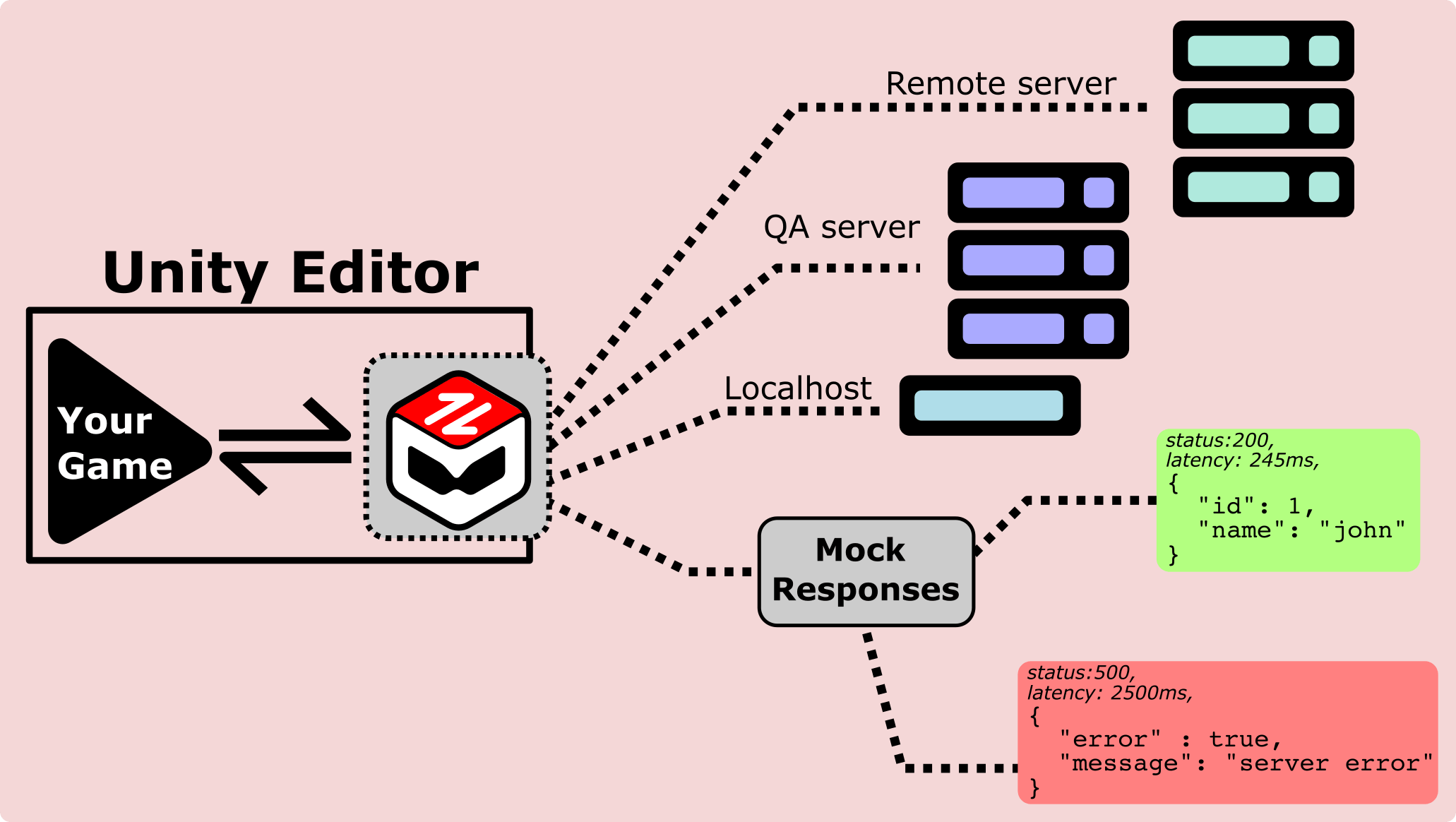
Diagram concept (to be rendered as a static image later): your game talks to the API Mocking Toolkit, which can in turn route calls to:

  • The real backend server
  • A local development server
  • A mocked success response
  • A mocked error response

↑ One tool, four ways to test – real backend, local server, mock success, mock error


Make your game work without a backend.

No live backend required during development. Your game talks to mocked APIs running entirely inside Unity.


Installation (Unity Asset Store)

  1. Open the Unity Asset Store
  2. Search for "API Mocking Toolkit" or open the Asset Store page directly in your browser.
  3. Click Import
  4. Import all files

Requirements:

  • Unity 2021.3 or later
  • No external dependencies

Run the Demo Scene

Follow these steps to run the included demo scene and verify that the toolkit is installed correctly:

Step 1 – Open the demo scene

In Unity, open Assets > CodeCarnage > ApiMockingToolkit > Samples > DemoScene > DemoScene.unity, then double-click to open it.

What you'll see:

  • A simple UI with two buttons: Get Users and Get Posts
  • Request/Response panels showing API calls
Step 2 – Press Play

Hit the Play button. The scene runs.

Step 3 – Click "Get Users"

What happens:

  • Button sends API request to jsonplaceholder.typicode.com/users
  • API Mocking Toolkit intercepts it
  • Returns mock user data instantly
  • No internet needed!

Example request/response:

REQUEST:
GET /users

RESPONSE:
Status: 200
{
"id": 1,
"name": "Leanne Graham",
"username": "Bret",
...
}
Step 4 – Click "Get Posts" multiple times

Watch this:

  • First click → Returns page 1 of posts
  • Second click → Returns page 2 of posts
  • Third click → Returns page 3 of posts
  • Fourth click → Loops back to page 1

This is Response Strategies – API Mocking Toolkit cycles through different responses automatically, which is useful for testing pagination and repeated calls.

What just happened?

You just ran a fully functional game that makes API calls through ApiClient, receives responses, and handles data without depending on a live backend.

  • ✅ No backend team required during this stage of development
  • ✅ No network connection required while using only mocked APIs
  • ✅ Fast, predictable responses
  • ✅ Complete control over the data you test with

How It Works

You might be wondering: "How does this work?"

Let's peek under the hood. Open DemoController.cs:

public async void OnGetUsersClicked()
{
// This is normal Unity HTTP code - nothing special!
var response = await ApiClient.GetAsync(
"https://jsonplaceholder.typicode.com/users"
);

// Display the response in the UI
DisplayResponse(response);
}

That's it. Standard API call. No magic.

Behind the scenes:

  • You configured an endpoint (already done in the demo scene)

    • URL: https://jsonplaceholder.typicode.com/users
    • Mock response: [{user data...}]
  • API Mocking Toolkit intercepts

    • Sees the URL matches your config
    • Returns your mock data instead of hitting the real server
  • Your code gets the response

    • Doesn't know it's mocked
    • Works exactly like a real API

The key idea: your game code doesn't change.

Same code works with:

  • ✅ Mocked data (when API Mocking Toolkit is active)
  • ✅ Real backend (when you turn mocking off)

No if (testing) checks. No special test code. Just works.


Create Your First Endpoint (Your Turn!)

Now for the real power: Mock YOUR game's API.

Imagine you're building an RPG. You need a player profile API, but the backend isn't ready yet.

Let's build it anyway:

Step 1 – Open the API Mocking Toolkit window

In Unity, open Window > CodeCarnage > API Mocking Toolkit. A new window opens—this is your control center.

Step 2 – Create an endpoint

Click "+ Endpoint". In the form, set:

Step 3 – Add a mock response

In the Response section, set Status Code to 200 and use a JSON body like:

{
"id": 123,
"username": "player1",
"level": 42,
"coins": 9999
}
Step 4 – Enable Offline Mode

Toggle Offline Mode ON at the top of the window so the game uses mocked responses instead of the real backend.

Step 5 – Test it

Create a test script:

using UnityEngine;
using CodeCarnage.ApiMockingToolkit;

public class ProfileTest : MonoBehaviour
{
async void Start()
{
var response = await ApiClient.GetAsync(
"https://api.mygame.com/user/profile"
);

Debug.Log($"Status: {response.StatusCode}");
Debug.Log($"Body: {response.Body}");
}
}

Run it! You'll see your mock data in the console.


What's Next?

🎉 Congratulations! You've:

  • Installed API Mocking Toolkit
  • Run the demo scene
  • Created your first endpoint

Continue learning:

  • Core Features (Deep Dive) – Response strategies, offline mode, environments, sessions, OpenAPI, error simulation, and more
  • Guides – Workflows and real-world scenarios
  • API Reference – Full API surface and code examples

Watch the video again later:

  • Use it as a visual cheatsheet when you come back to the tool

Troubleshooting

Nothing happening?

  • Make sure Offline Mode is ON
  • Check the URL matches exactly (case-sensitive)
  • Look for errors in the Console

Demo scene not working?

  • Make sure "Demo Scene Collection" is selected in dropdown
  • Re-import the Samples folder from Package Manager

Need help?